 UltraClipart♡
 A practical project
Make a classroom label that stays readable
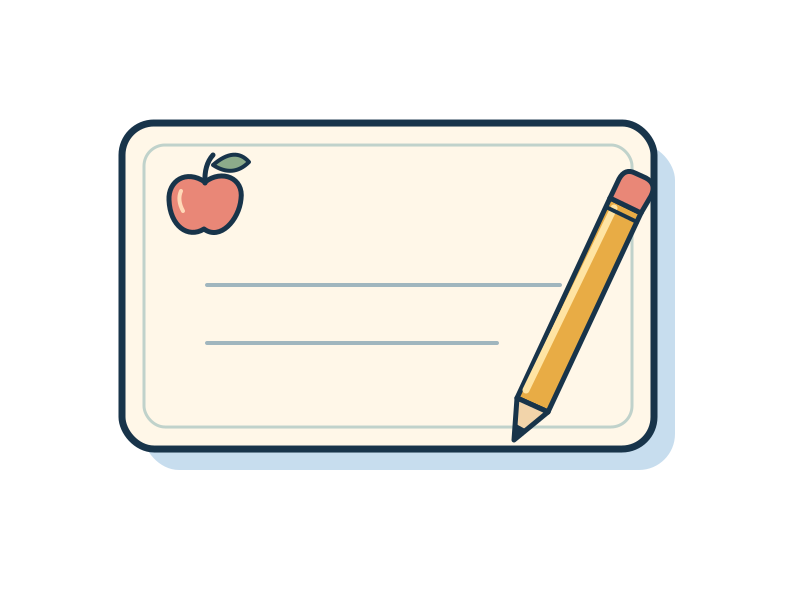
Build a subject label with the Learning label starter, adjust its layers, and check the result at its actual size.
Decide what the label needs to say
Choose one purpose before changing the artwork. A notebook label might need only “Science”; a classroom tray might need “Paper scraps.” A short subject is easier to recognize than a sentence squeezed into a decorative frame. Keep student names out of any files or examples you send to us for support.
This project uses the 800 × 600 Learning label starter. You will keep its frame, add a caption, remove any decoration that crowds the words, and save both an editable copy and an image for your layout. You do not need an account.
1. Open the starter and find its pieces
Open Create your own clipart and choose Learning label. Selecting a starter replaces the current canvas; save an existing project first if you want to keep it separately. Open Layers to see the frame, pencil, decorations, and writing lines. Select a layer in that list when a small object is difficult to click on the canvas.
The frame gives the words a quiet area. Try hiding one decorative layer before deleting it: this makes it easier to compare the simpler version with the original. Undo can restore a change, but a downloaded project file is a better way to keep a version for another day.
2. Give the words enough room
Open Text. Enter your wording in Caption and choose Add / update caption. Try “Science” first. Set the text color to a dark blue such as #1b293c and keep the space behind it pale. Color should support the words, not become the only way to identify the subject.
If your wording overlaps the pencil, shorten it or move the decoration. Shrinking the letters repeatedly usually makes the label harder to use. Use the move controls or the keyboard arrow keys to adjust the selected layer; Shift plus an arrow moves it farther. Read the label at the size it will actually appear, not only while zoomed in.
3. Save a version you can change next term
Choose Save project to download the editable project. Use a filename you recognize, such as science-tray-label.json. A WebP export is a finished image and cannot restore the separate layers. Browser recovery is useful, but clearing site data or switching devices can remove access to that local copy.
4. Place the image without stretching it
Choose Export, select WebP, and keep the background transparent if you want the label to sit on colored paper or a document background. When inserting the exported image into your document, preserve its proportions. An 800 × 600 canvas has a 4:3 ratio, so a four-inch-wide image is three inches tall. The visible label inside it will be smaller because the canvas includes empty space.
Use the print size calculator with your actual exported pixel dimensions to check image density. If printing directly from the studio, select the paper and margins under Print setup, choose Fit entire artwork, and export PDF. This produces a page containing the artwork; it does not automatically arrange a sheet of repeated adhesive labels.
Before making a whole class set
Print one copy and inspect the smallest letters, frame, and pencil tip. Compare it with the intended tray or notebook. If a commercial label sheet has fixed cut lines, use that manufacturer's layout template and check its margins separately. The studio does not promise alignment with a particular label product.
Classroom use is covered by our personal and educational license. Selling labels made with our starter artwork is not permitted. For a design consisting entirely of your own original shapes, start on a blank canvas; UltraClipart does not claim ownership of that original work.