 UltraClipart♡
 For classrooms and families
Turn a pumpkin into a useful coloring activity
Simplify the real pumpkin drawing, preserve important outlines, and leave room for a personal caption.
Give the activity a clear purpose
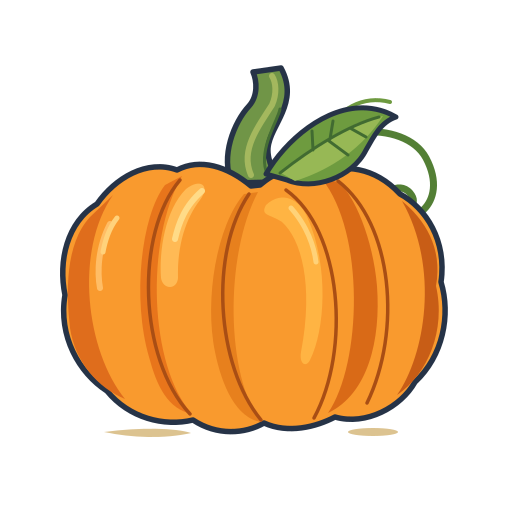
A coloring page needs space to work. This project uses one pumpkin as a focal point instead of filling the sheet with small decorations. A child can choose a palette, add a caption, or compare the curved body with the pointed leaf. This is a creative activity suggestion, not a tested lesson plan or a claim about learning outcomes.
The main decision is how much detail to keep. The curled vine is distinctive, but fine surface accents can compete with the broad shapes when reduced to a small print. The editor lets you hide those layers and compare the result without changing the original download.
1. Start with the real drawing
Open the pumpkin in the editor. Choose Layers and inspect the named pieces. Hide decorative surface details one at a time if you want a simpler activity. Keep the main silhouette, stem, leaf, and vine so the subject remains recognizable. Save your project before trying a different direction.
2. Compare grayscale with outlines
Grayscale removes color but retains dark filled areas. Outline mode changes the treatment of shapes so there is more open space to color. Open Print / B&W and compare Grayscale with Outline only. They solve different problems: grayscale is useful for a monochrome illustration, while a coloring activity usually benefits from open interiors.
Do not assume a single preset makes every drawing suitable. Look where the leaf overlaps the body and where the vine approaches the stem. If small contours become confusing, hide the relevant accent layer or increase the print size. Use Undo if you remove a line that helps explain the shape. The original colored file remains available on the artwork page.
3. Add a short prompt with room to answer
Open Text, add a caption such as “My autumn colors,” and position it away from the vine. Keep a broad blank area around the pumpkin if the activity includes writing or drawing. A caption should not cover the subject or make a child color around tiny letters.
For a digital worksheet, export a transparent WebP and arrange it in your worksheet application. Place the instructions as real text in that document where possible. A single flattened image containing all the instructions is harder to adapt and does not provide the same accessibility as selectable document text.
4. Check the whole printed page
For a direct print, open Print setup, choose US Letter or A4, and start with half-inch margins and Fit entire artwork. Enable the paper preview. Fit keeps the complete composition inside the available area; Fill page can cut off the vine or leaf. Export PDF and open the downloaded file before printing.
The PDF uses CMYK vector shapes, but a printer's “black and white” option may interpret gray or colored elements differently. If ink use matters, inspect the page and print a single proof. We have not physically tested this activity on every printer or paper. Avoid promising a particular ink saving based only on the on-screen preview.
Make the second version meaningfully different
Try a large single pumpkin for free coloring, then a smaller version with more blank space for an original drawing. These are adaptations of the same artwork, not two newly authored catalog illustrations. Keep the project files if you want to change the layout again. Personal and educational adaptations are permitted; resale of the artwork or commercial use is not.
For help choosing an export, read Which file should you download?. If the printed lines look soft, compare the original vector PDF with a screenshot: the screenshot has a fixed pixel count and can lose detail when enlarged.